Picture settings
The Picture tab in Settings controls how your picture is read into a chart. At the top, a short note says whether the chart was read from a printed chart or made from your picture, and how many colors or symbols it has. Some controls appear only for a PDF, or for a selected stitch in a color chart.
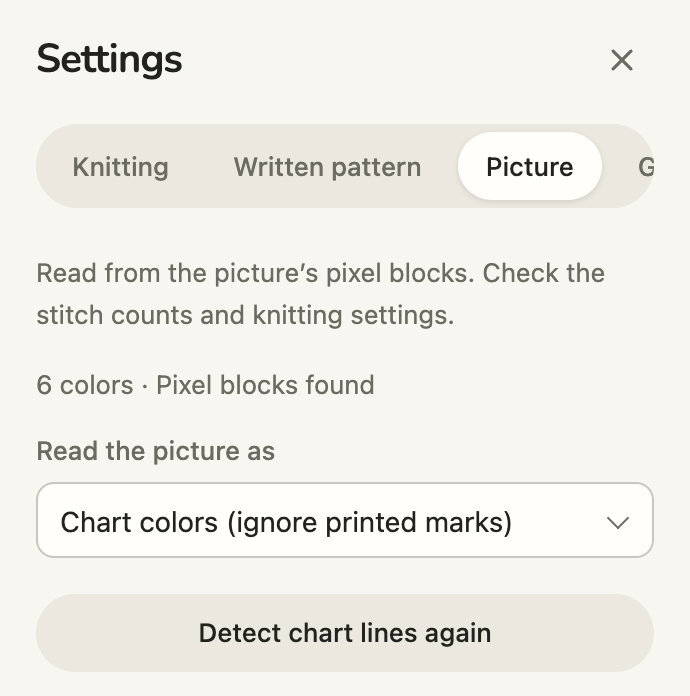
How the picture is read
Read the picture as has four choices:
- Automatic — find chart lines or use the picture: Knitter Friend looks for the lines of a chart grid, or the even blocks of color of pixel art, and reads the picture as a chart if it finds either.
- An existing chart: read the grid as an existing chart, either a color chart or, when its squares hold knitting symbols, a symbol chart.
- Chart colors (ignore printed marks): read only the color of each square, ignoring numbers and marks printed in it.
- A picture to turn into a chart: make a new chart from the picture, even if it contains a grid.
What a change rebuilds
Choosing another way to read the picture reads it again and rebuilds the chart, so stitch corrections are cleared. After the picture is read, the menu shows how it was read. See how your picture is read.
Detect chart lines again returns to automatic detection and looks for the chart grid again.
PDF pages
This control appears only when you opened a PDF:
- PDF page: the number of the page to open. Select Open page to open it. You then choose from its color versions, as for a new picture.
Similar stitches
Similar stitches appears for a color chart when you select one stitch in it. It finds the stitches you have not confirmed whose shade is close to the selected stitch, and gives them the yarn chosen for that stitch.
Tone tolerance sets how close the shade must be: a higher percentage finds more stitches. The button below it shows how many stitches it will change. See similar stitches.