Open a picture or a file
Everything starts with one picture: a photo, a drawing, a logo, or a knitting chart you already have. Knitter Friend opens it in your browser and shows the color versions it can make from it.
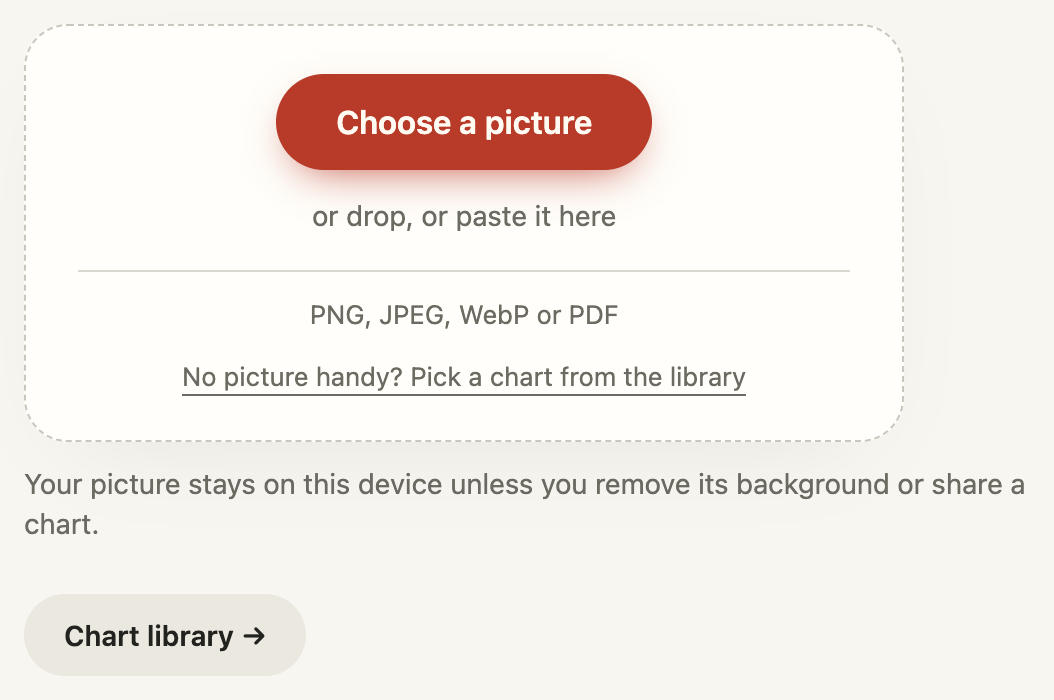
Ways to open a picture
- Select Choose a picture and choose a file on your device.
- Or drag the file from another window and drop it onto the page.
- Or copy a picture, for example from an image editor or a web page, and paste it onto the page.
File types
You can open PNG, JPEG and WebP images, and PDF files. A PDF opens at its first page; see charts in a PDF pattern to choose another page.
Very large files and pictures are refused with a message that says the limit. Save a smaller copy of the picture, or crop it, and open that instead.
What makes a good picture
- Bold shapes with clear edges convert better than a detailed photo.
- A few strong colors give a chart with few yarn changes.
- To remove a photo’s background, select Remove background in Chart.
- For a chart from a book or a pattern, a straight, evenly lit scan or photo lets the grid be found.
No picture at hand
Select No picture handy? Pick a chart from the library to start from a finished chart instead: see the chart library.
Coming back to your chart
Your work is saved in this browser as you go. When you come back to the start page, Continue your chart → reopens the chart you were working on.
To start again with another picture while a chart is open, choose Project › Open another image. To open a project you downloaded earlier, choose Project › Open saved project.