Crop and zoom your picture
Cropping chooses the part of the picture that becomes the chart. For a picture, it puts all the stitches into the motif. For a page with an existing chart, it leaves out the text, the numbers and the color key around the grid.
Crop
Cropping rebuilds the chart, so stitch corrections and custom colors are cleared. Crop first, then correct single stitches.
- Open Your picture above the chart.
- Drag across the part you want. When you let go, the chart is rebuilt for that area.
- Check the result in Edit chart. To try again, drag across another area.
Undo a crop
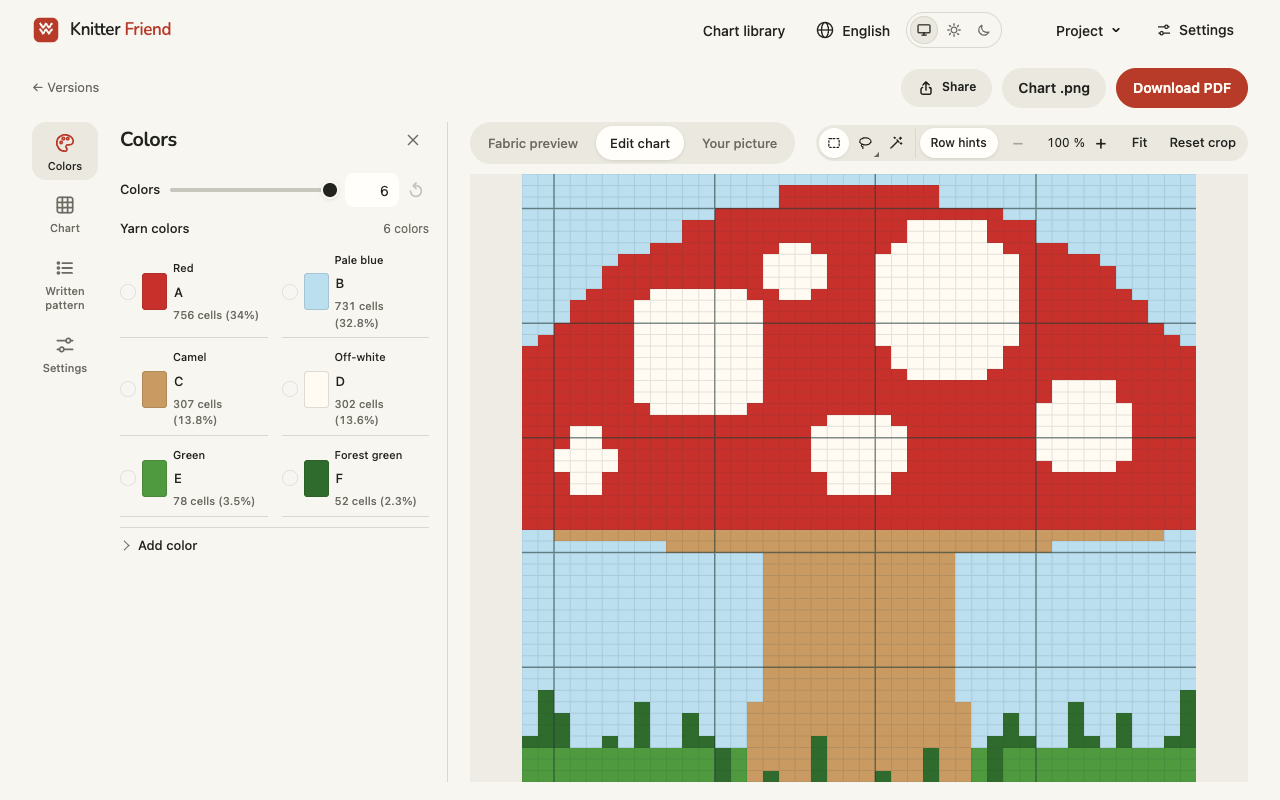
Select Reset crop in the toolbar of Edit chart to rebuild the chart from the whole picture. The last button in the toolbar of Your picture, which shows the whole picture, does the same. Both clear the corrections made to the cropped chart.
Zoom and move around
Use the zoom buttons or enter a percentage to zoom in, and Fit to fit the picture to the view. While the picture is zoomed in, dragging moves it; turn off the hand button to drag a crop instead. Holding Space, or dragging with the middle mouse button, also moves the picture.
Cropping an existing chart
Drag across the part of the grid you want, leaving out the row and stitch numbers. Every square the area touches is kept, using the grid that was already found; a crop cannot add squares that were not found. If the grid itself is wrong, see how to check the grid.