Yarn colors
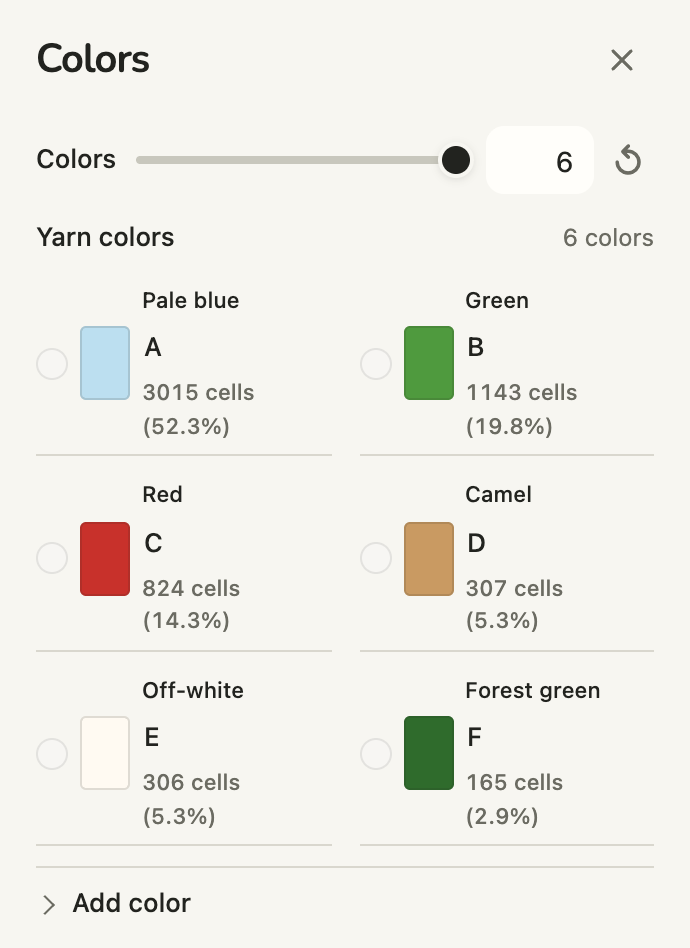
Under Yarn colors, in the Colors sidebar, every yarn has a swatch, a color name, an editable name, and its cell count and percentage of the chart. These counts update when cells change yarns. The written instructions call each yarn by a letter, and the key says which yarn each letter stands for.
Letters and names
The yarns get letters in the order of the list: A, B, C and so on. The rows use these letters, for example “k3 with A”. To choose how they are written, open Settings › Written pattern › Write yarn colors as.
Each yarn shows a color name that describes its swatch, and a name field that starts with its letter. Type the name of your own yarn: the key lists each letter with your name. If you clear the field, the yarn is called by its letter again.
Change a shade
Click a swatch to open Pick a color. Select Current chart palette for a separate, scrollable picker of the current yarns, or Custom for your system color picker.
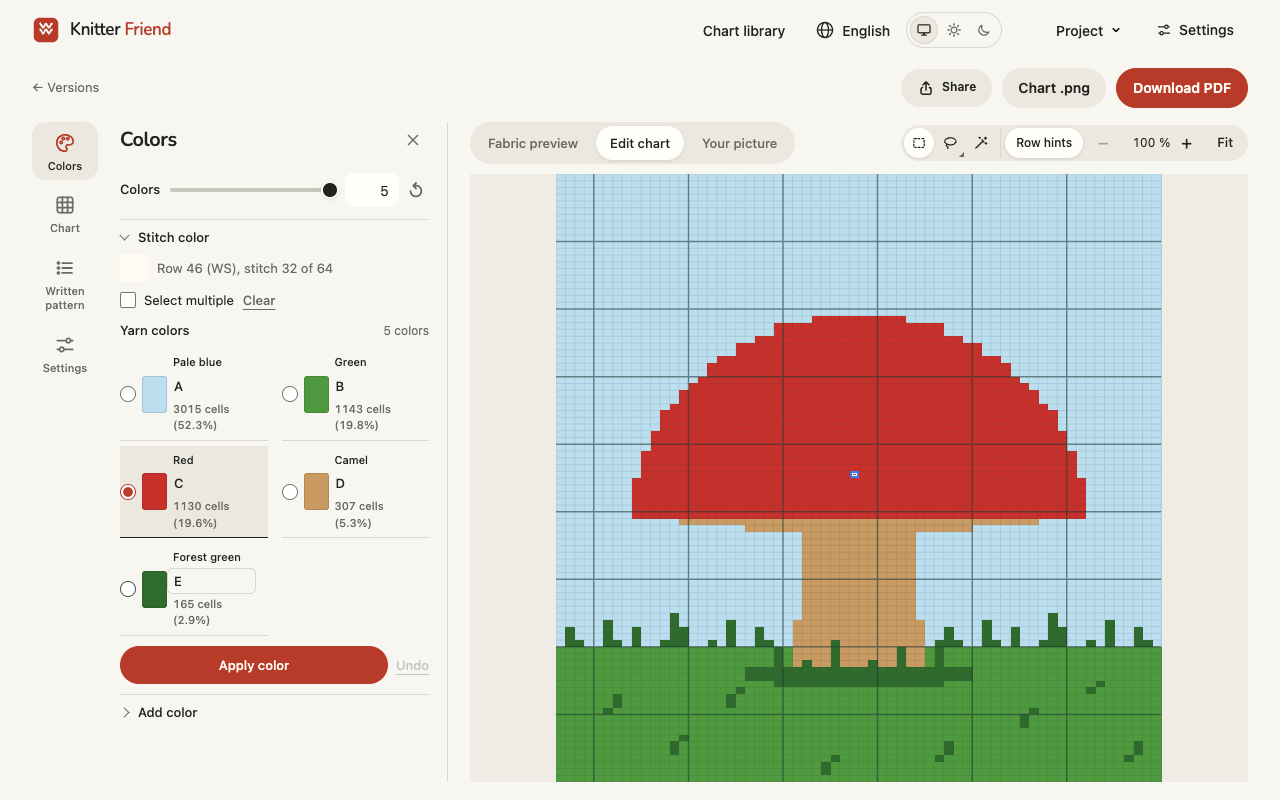
Choosing another yarn moves every cell of the yarn you clicked to that existing yarn. For example, choosing D for E moves all E cells to D. E stays listed with 0 cells (0%) until you remove it. The same happens if a shade chosen with Custom exactly matches another swatch.
A new custom shade keeps the cells in their current yarn, with the same letter. The chart, the key and the Fabric preview use the new shade. Point at a swatch to see its hex code.
Add a yarn
The new yarn is added at the end of the list, with no stitches yet. Select stitches in the chart and apply it: see recoloring stitches. A chart can have only a limited number of yarns.
- Open Add color below the list.
- Select Pick from picture and click a shade in Your picture. Press Esc to stop picking. Or choose the shade with Color, or type its code in Hex, such as #a03c5a.
- If you like, enter a name in Name (optional). Without a name, the yarn is called by its hex code.
- Select Add color.
Remove a yarn
A yarn with 0 cells (0%) has a remove button (×), Remove color. To empty a yarn that is in use, click its swatch and choose another yarn in Current chart palette, then remove the empty yarn.
The yarns after it move up one letter; the names you typed stay. A removed yarn does not come back when you change the number of colors or restore the colors found.
When the chart is rebuilt
Cropping the picture or changing the Cell size rebuilds the chart from the picture and clears the yarns you added. Set the size and crop first, then adjust the yarns: see cropping and zooming.