Recolor stitches
A chart may have a few stitches in a color you do not want. Select them in Edit chart, choose a yarn and apply it; the rows are written again at once. Set the size and crop of the chart first: both rebuild it and clear the colors you applied.
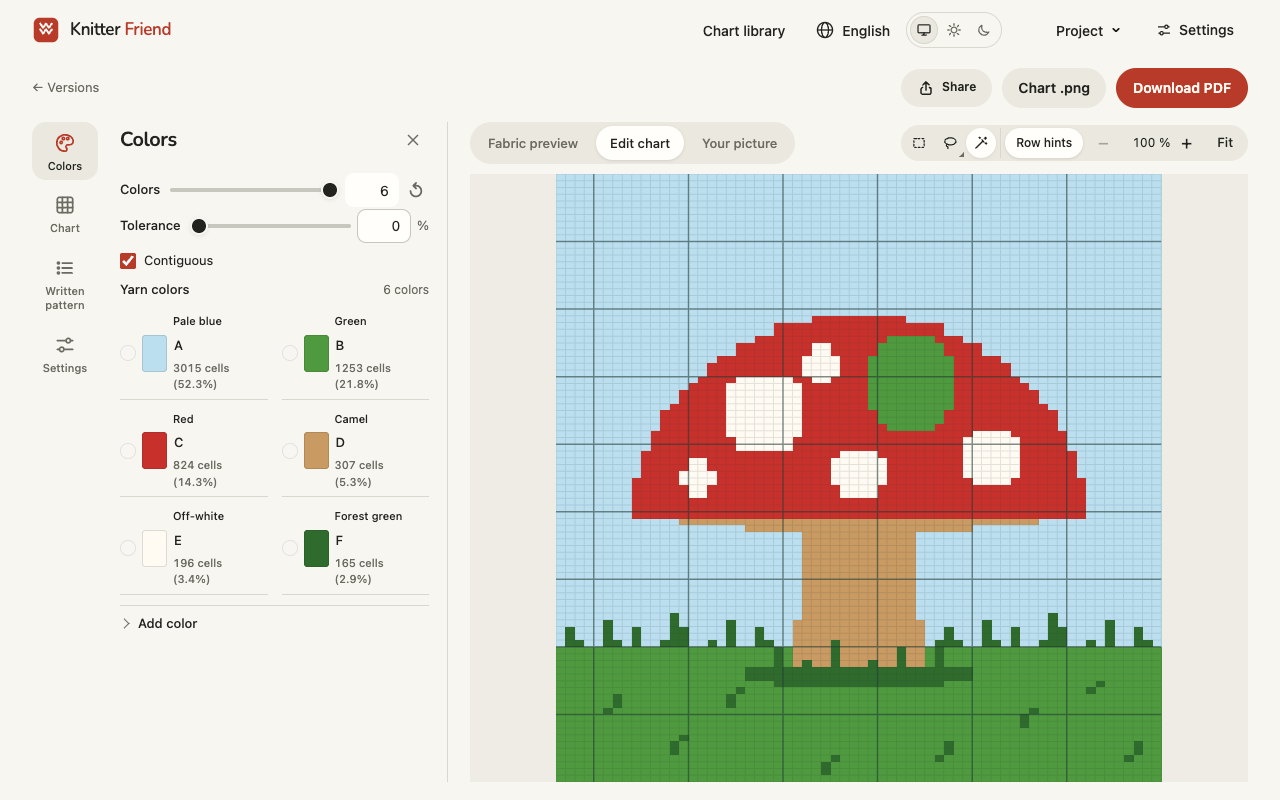
Select stitches
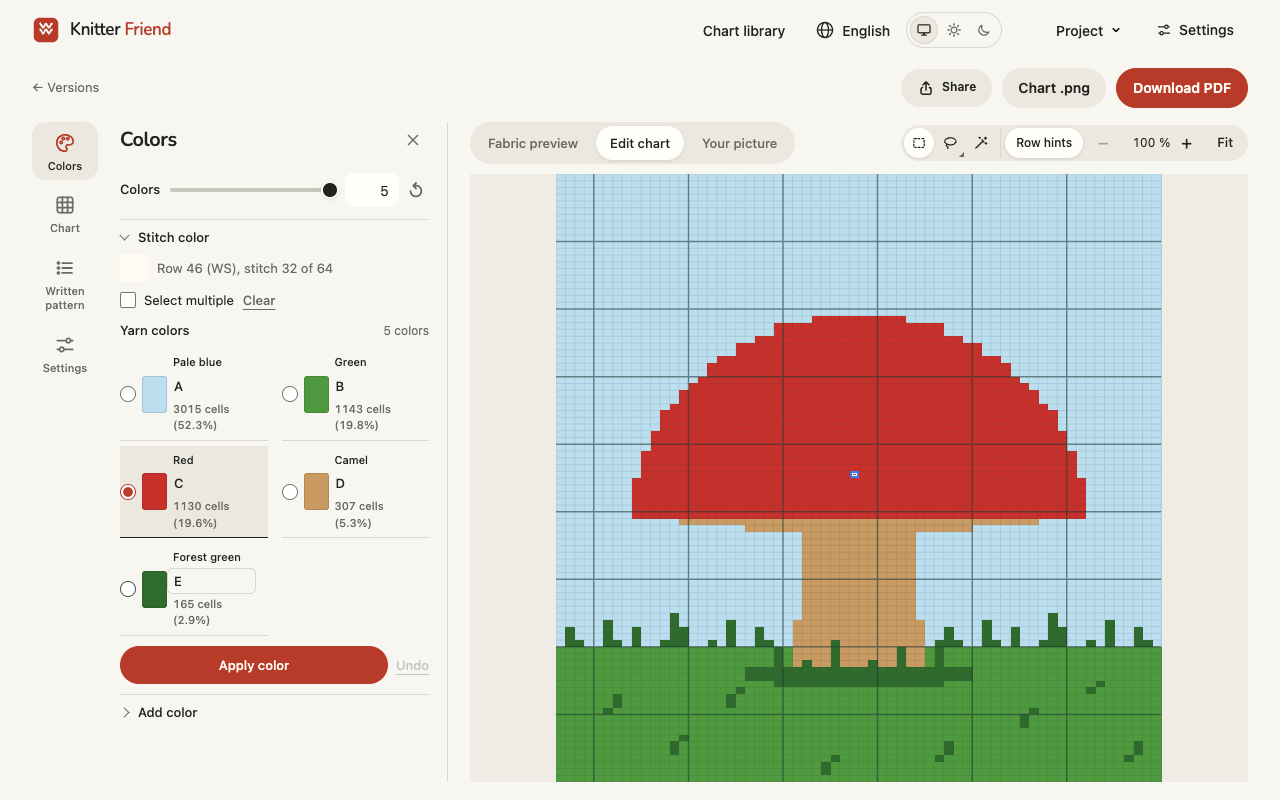
Click a stitch to select it. In the Colors sidebar, Stitch color shows a close-up of that square in your picture, with its row and stitch number.
To select several stitches, hold Shift (or Cmd on a Mac, Ctrl elsewhere) while you click, or select Select multiple. Doing this on a selected stitch takes it out of the selection. Clicking a stitch with Alt (Option on a Mac) held also takes it out. Clear, Esc, or Cmd+D (Ctrl+D) clears the selection.
Selection tools
The selection tools are the buttons in the toolbar of Edit chart. With Shift or Select multiple, a tool adds to the selection; used on stitches that are all selected already, it takes them out. With Alt (Option on a Mac), a tool takes its stitches out of the selection and adds none. The keys count when you start to draw, so you can release them before you finish.
- Rectangle (M): drag across stitches to select a rectangle.
- Lasso (L): draw around stitches. Every stitch whose center is inside the outline is selected.
- Polygonal Lasso: click the corners around the stitches, then click the first corner again, double-click or press Enter. Backspace removes the last corner. The two lassos share one button: click it again or right-click it to choose the other one, or press Shift+L.
- Magic Wand (W): click a stitch to select the stitches of its yarn color.
Magic Wand options
While the Magic Wand is in use, Tolerance and Contiguous appear in the Colors sidebar. The wand compares the yarn colors shown on the chart. At 0%, it selects only stitches of the same yarn; a higher Tolerance also takes yarns of a similar shade.
With Contiguous selected, only stitches joined to the clicked stitch through their sides are selected. Clear it to select every matching stitch in the chart.
Apply a yarn
To use a shade that is not in the chart yet, add it first: see yarn colors.
- With the stitches selected, choose a yarn in Yarn colors with the round button in front of its swatch. If all the selected stitches have the same yarn, it is chosen already.
- Select Apply color. With several stitches selected, the button says how many stitches it changes.
Undo
Undo is beside the apply button while stitches are selected. Select any stitch in Edit chart to reveal it: it reverses the entire last cell reassignment, regardless of the current selection. This includes applying a yarn to selected stitches and moving all cells from one yarn to another through a swatch.
Only one undo step is available. Changing the number of colors or removing a yarn clears it. It does not undo a change to a new custom shade or restore a deleted yarn.
Similar stitches
In an existing chart, some squares may have no certain color. After you apply a color to one stitch, Knitter Friend may offer to give the same color to uncertain stitches of a similar tone: see coloring similar stitches.