Choose a color version
When you open a picture or a chart, Knitter Friend shows several versions of the chart side by side. They have the same stitches and rows and differ only in how many yarn colors they use, so you can compare them before you start editing.
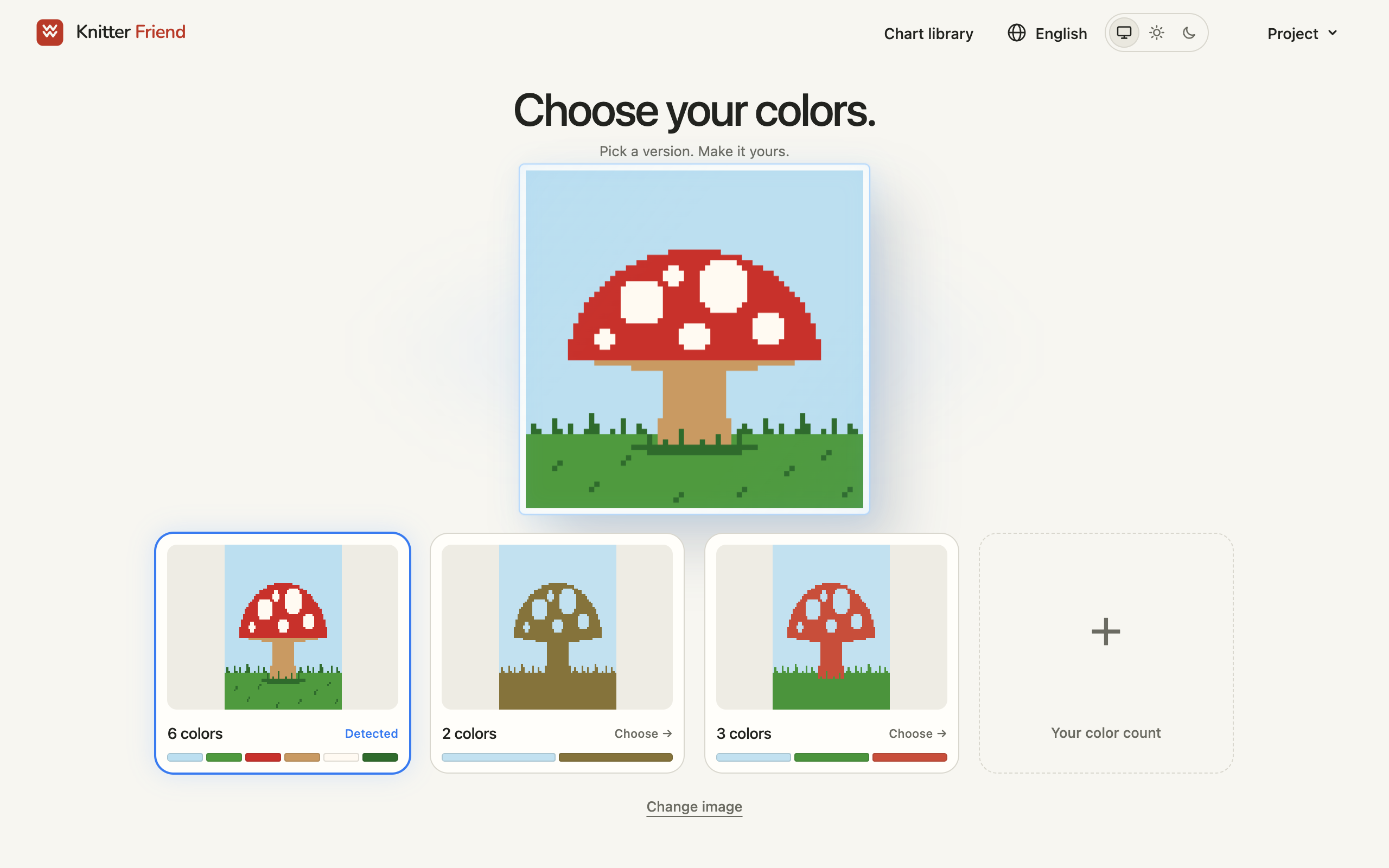
The versions
Each version shows a small preview of the chart, its number of colors and a row of its yarn colors. Fewer colors make a simpler chart with fewer yarn changes.
For a picture, the suggested version is marked Default. For an existing chart read from its grid, the suggested version is marked Detected: it keeps every color found in the chart. The other versions are marked Choose →.
Open a version
Select a version to open it. You can still change its number of colors later in the Colors sidebar: see changing the number of colors.
Your own number of colors
You can choose up to the number of colors found in your picture or chart, within a limit.
- When all the versions are ready, select Your color count after the last version.
- In Choose your color count, set Colors with the slider, or type the number.
- Select Create version. A version with that number of colors appears with the others.
Go back to the versions
While you edit, select ← Versions to see the versions again and open another one. When you come back to a version you changed, the stitches you recolored and the shades you changed are still there.
← Versions is not available for a chart read as knitting symbols.
Start with another picture
Change image, below the versions, takes you back to the start page, where you can open a different picture.